1. Start from the original
Keep a clean source copy. Work on a duplicate so you can revisit the crop, dimensions or format later.
Compress, resize, crop and convert images without installing desktop software. Preview your output, check its dimensions and file size, and learn when each format or setting makes sense.
For supported tools, the core image operation runs locally in your browser. Keep your original file for important work.
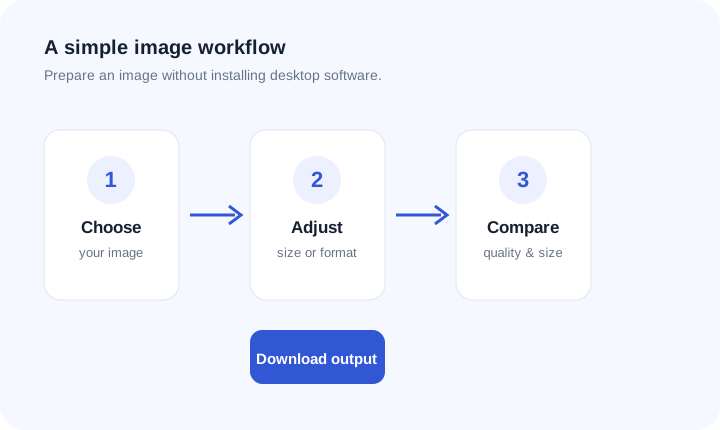
Original ImageRW diagram: ImageRW diagram showing a simple image preparation workflow.
Start with the task you need. Each tool is paired with practical guidance so you can understand the trade-offs instead of guessing at settings.
Reduce JPG, PNG and WebP file sizes and compare the result.
Resize images to practical pixel dimensions.
Crop images to a chosen width and height.
Create a PNG copy of a JPG image.
Create a compact JPG copy of a PNG image.
Create WebP versions for modern web workflows.
File size is influenced by more than a quality slider. Pixel dimensions, image format, transparency, image content and the destination all matter. A very large source may benefit more from resizing than from aggressive compression.
A useful workflow is simple: keep the original, choose practical dimensions, select a suitable format, create an optimized copy and inspect it where it will actually be used.
Supported ImageRW tools are designed to perform their core transformations in your browser. The source image does not need to be uploaded to a remote server for those operations.
A smaller file is useful only when the image remains fit for purpose.
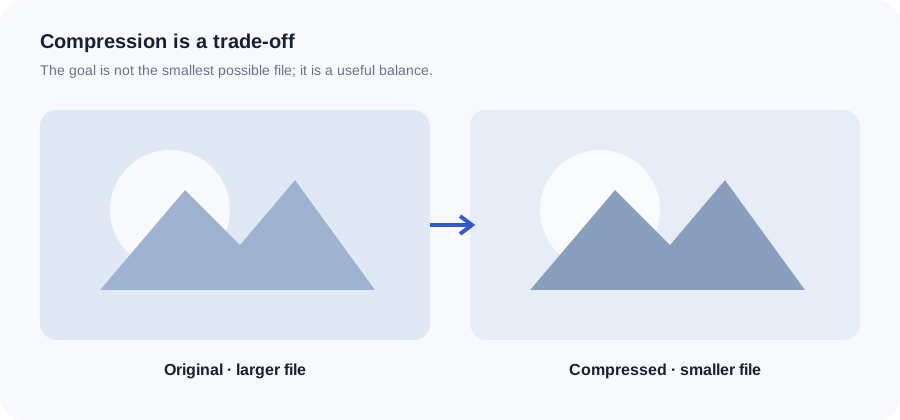
Original ImageRW diagram: Illustration comparing a larger original image with a smaller compressed copy.
Learn how dimensions, formats and compression choices work together.
Dimensions, formats, quality and a repeatable compression workflow.
Understand which format fits photographs, graphics and transparency.
Compare practical web delivery choices using real image files.
File names, alt text, dimensions, relevance and page context.
Use the order below to avoid unnecessary quality loss and repeated work.
Keep a clean source copy. Work on a duplicate so you can revisit the crop, dimensions or format later.
If an image will appear at a small size, resize it before applying aggressive compression. Avoid enlarging a small source unless you accept softer detail.
Use JPG for many photographs, PNG when crisp lossless graphics or transparency matter, and WebP when your workflow supports it. Check the result rather than assuming one format always wins.
Check the output at its intended display size. Compare file size, visible detail, transparency and compatibility before publishing.
Image processing is not one-size-fits-all. Photographs, screenshots, logos, product images and illustrations respond differently to compression and format conversion.
That is why ImageRW combines practical tools with explanatory content. The goal is to help you complete a task now and understand how to make a better decision the next time.
Keep a high-quality source and create web-ready derivatives from it. That makes future crops, dimensions and format conversions easier.