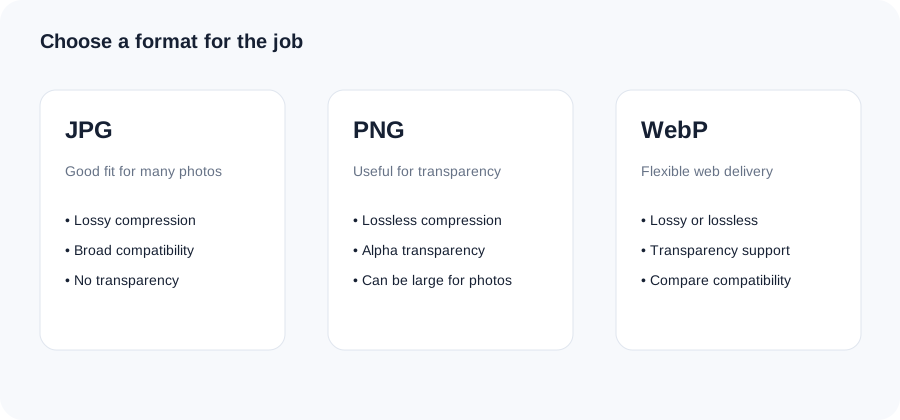
JPG and PNG solve different problems. JPG is commonly efficient for photographs, while PNG is useful when lossless encoding or transparency is important. Converting a JPG to PNG does not restore information already discarded by JPEG compression.
1Choose a file
Select an image or drag it into the tool.
2Adjust the options
Use the available setting for the task and keep the result practical.
3Review and download
Check the output before using it on your site, email or app.
Original ImageRW diagram: JPG to PNG Converter.
Before you start
Use PNG when you have a reason such as transparency or crisp graphic edges. Converting a JPG to PNG does not restore information already removed by JPEG compression.
When PNG is useful
PNG can be a good fit for graphics, screenshots, interface assets and images that need transparency. Its lossless approach can preserve sharp edges well.
Conversion does not restore lost detail
If a JPG has already been compressed, the conversion only changes how the existing pixels are encoded. It cannot recreate detail that was removed earlier.
Why the PNG can be larger
PNG often compresses photographs less efficiently than JPG. A photographic JPG converted to PNG may therefore become substantially larger even though the visible image is similar.
Check the destination
Use PNG when the workflow actually benefits from its characteristics. If the goal is simply a smaller photographic file for a website, compare JPG or WebP instead.
A practical workflow
Keep the original JPG, convert a copy, inspect edges and text, compare file sizes and verify that the destination accepts PNG.
Frequently asked questions
Will JPG to PNG improve quality?
No. It cannot recover detail already lost in the JPG.
Can PNG support transparency?
Yes, although converting a JPG cannot create transparency that was not present.
Why is my PNG larger?
PNG can be less efficient than JPG for photographic content.
Keep your original file.Image processing creates a derivative. Retaining the original makes it easier to create another size, crop or format later.
Related ImageRW resources