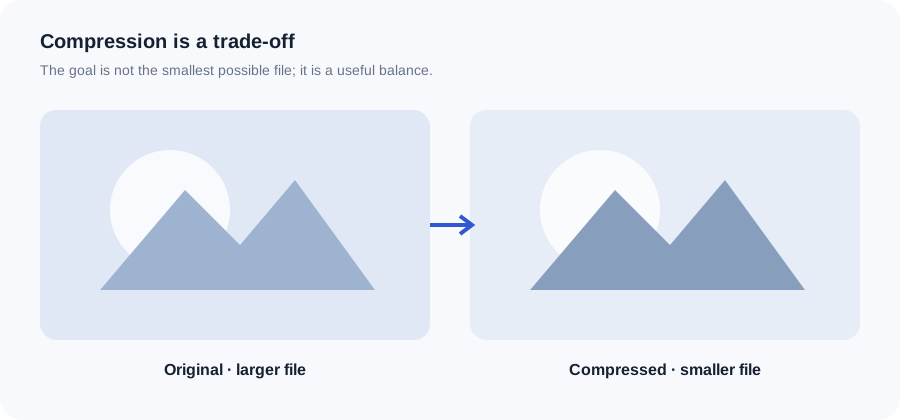
Image compression reduces the amount of data needed to store or deliver an image. A useful result is not simply the smallest possible file: it is a file that is small enough for its purpose while keeping the details people need to see.
1Choose a file
Select an image or drag it into the tool.
2Adjust the options
Use the available setting for the task and keep the result practical.
3Review and download
Check the output before using it on your site, email or app.
Original ImageRW diagram: Image Compressor.
Before you start
If the source is much larger than the final display area, resizing it first can reduce file size more efficiently than lowering quality alone. Keep the original file so you can make another derivative later.
What makes an image file large?
File size is influenced by pixel dimensions, image content, format, compression settings and sometimes metadata. A 4000 × 3000 photograph contains far more pixels than a small web thumbnail, so resizing can be a more effective first step than aggressively lowering quality.
Lossy and lossless compression
Lossy compression removes information to achieve smaller files. JPEG is a familiar example. Lossless compression keeps the encoded image information intact, although the resulting file can still be much larger for photographic content. WebP supports both approaches.
A practical compression workflow
Start with the intended display size. If the source is unnecessarily large, resize it. Next choose a format that fits the content, apply moderate compression, inspect fine details and compare the final file size. Keep the original so you can create another version later.
How much should you compress?
There is no universal percentage. A website hero image, an email attachment, a product photo and a screenshot have different requirements. The useful target is the smallest file that still looks appropriate in its real context.
Common problems
If a compressed image looks soft, blocky or noisy, the quality setting may be too aggressive. If the output is unexpectedly larger, the chosen format may be inefficient for that particular image or the source may already be highly compressed.
Frequently asked questions
Does compression change my original image?
No. ImageRW creates a new output file in the browser.
Is smaller always better?
No. Extreme compression can remove useful detail.
Should I resize before compressing?
If the source dimensions are much larger than needed, resizing first is often sensible.
Keep your original file.Image processing creates a derivative. Retaining the original makes it easier to create another size, crop or format later.
Related ImageRW resources