How to Optimize Images for WordPress
ImageRW Guide · Practical image workflow
WordPress can make image management convenient, but the best results still come from understanding the original files and how the site displays them.
Quick takeaways
- Check the largest rendered image area before choosing dimensions.
- Review both desktop and mobile pages.
- Measure representative files before changing a whole media library.
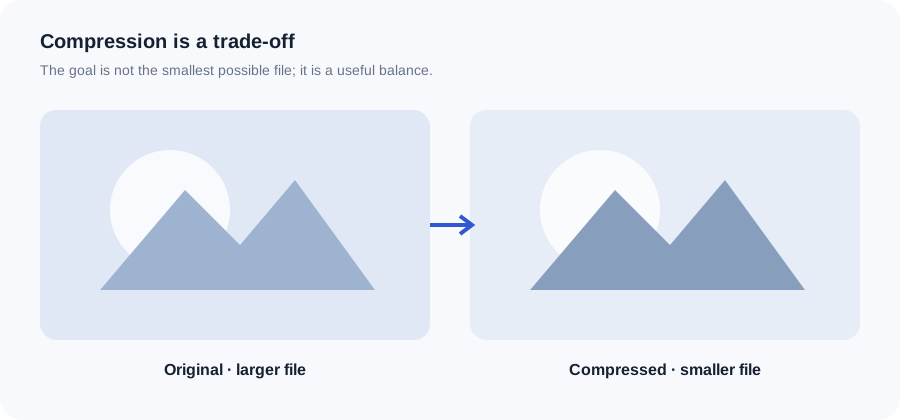
Original ImageRW diagram: How to Optimize Images for WordPress.
Start with clean source files
Keep an original copy outside the web upload workflow. Create optimized derivatives rather than repeatedly recompressing an already compressed file.
Match dimensions to the theme
Check the actual content width, hero area and card sizes. Avoid uploading a huge original when the largest display area is much smaller.
Choose formats intentionally
Photographs often work well as JPG or WebP. Transparent graphics may need PNG or another supported format. Compare real outputs rather than following a format rule blindly.
Be careful with repeated compression
Saving an already compressed JPG as another JPG can compound artifacts. When possible, return to the original source for new derivatives.
Check mobile pages
A page can look fine on a desktop while sending unnecessarily large images to a narrow mobile layout. Review the actual page experience.
Measure before and after
Record a few representative image sizes before optimization, then compare the optimized versions. This gives you a practical baseline for future uploads.
A practical WordPress workflow
- Start with the cleanest original you own.
- Decide the largest display size the page actually needs.
- Create a resized copy when the source is much larger.
- Choose a suitable format and moderate compression.
- Check the published page on both desktop and mobile.
- Measure the result with the page performance tools you already use.
Frequently asked questions
Should I resize images before uploading to WordPress?
If the source is much larger than the largest display size, resizing it first can reduce unnecessary bytes.
Is WebP required for WordPress?
No. It is an option. The right format depends on your hosting, plugins, browser support and content.
Why are some WordPress images still large?
Photographs, transparent graphics and screenshots compress differently, and the source dimensions may also be excessive.
Image content varies. Test representative files, keep the original and judge the output in the context where people will actually see it.